How can I share my screen?
How to share a screen with multiple devices?
Sharing a screen can be done in several ways, depending on your devices and operating system. On Windows and macOS, you can share your screen wirelessly via technologies such as Miracast, AirPlay, or a wired connection using an HDMI cable. Make sure both your monitor and your second device support screen sharing. When buying a monitor, it's useful to check if the monitor supports features such as wireless sharing.
Refurbished Monitors
What are the keyboard shortcuts for sharing your screen?
On Windows, you can use the following keyboard shortcuts to share or project your screen:
- Windows + P â Opens the projection menu for screen sharing.
On macOS, use the following steps:
- Go to the Apple menu â System Preferences â Displays â AirPlay screen.
Use these options to quickly duplicate or extend your screen to a second monitor or TV.
How do you share a screen on Windows and Mac?
On Windows, right-click on the desktop and select 'Display settings'. Then choose 'Multiple displays' to duplicate or extend your screen. On a Mac, open 'System Preferences', go to 'Displays' and choose 'AirPlay' or an external monitor. Ensure the connection is stable and use a suitable cable or wireless connection. Whether you use a new or refurbished monitor, sharing your screen is easy with the right settings.
Buy a Monitor


Buy a Monitor
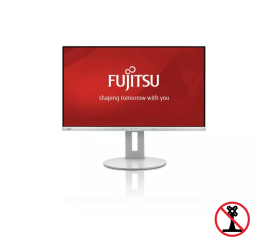
Fujitsu B27-9 TS FHD - 27 inch