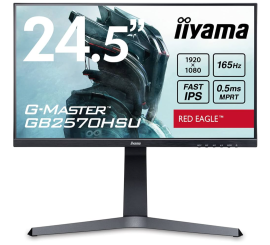
Adjust screen brightness.
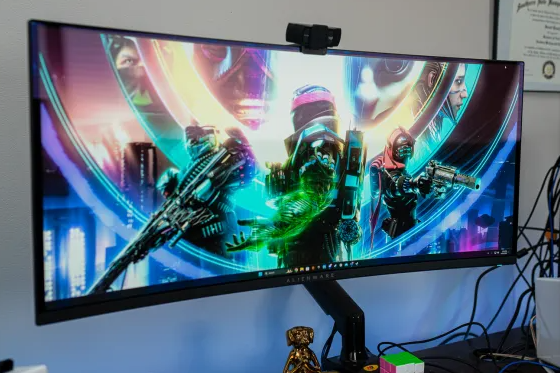
How do you adjust your screen brightness?
Adjusting your screen brightness can be done in several ways, depending on your device and operating system. On Windows 11, go to 'Settings' â 'System' â 'Display' and adjust the brightness slider. With an external monitor, you usually use the physical buttons on the screen to adjust the brightness. Make sure your brightness is matched to the lighting conditions in your room for optimal viewing comfort.
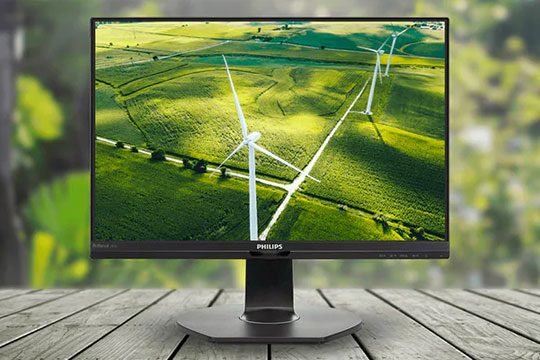
Which keyboard shortcuts do you use to adjust brightness?
On laptops, you can often use keyboard shortcuts to adjust the brightness:
- Fn + F5/F6 â Decrease or increase brightness (depending on your laptop model).
- Windows + A â Open the action center and adjust the brightness using the slider.
On external monitors, you usually use the buttons on the monitor itself. Consult your monitor's manual if you can't find the brightness setting.
Refurbished monitors
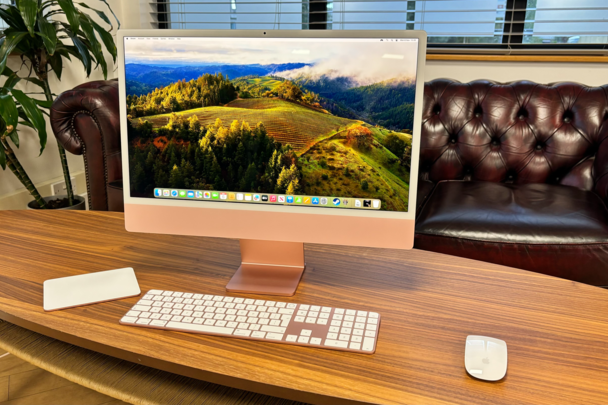
Why is it important to adjust your monitor's brightness?
Properly adjusted brightness reduces eye strain and prevents headaches with prolonged screen use. Excessive brightness can lead to eye irritation, while too low a brightness level makes it difficult to read texts. Especially with changing light conditions, such as daylight and evening light, it is important to adjust the brightness regularly. Whether you are working on a new or refurbished monitor, a good brightness setting contributes to a comfortable viewing experience.


Buy a Monitor
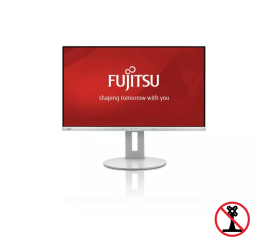
Fujitsu B27-9 TS FHD - 27 inch