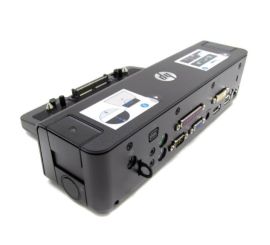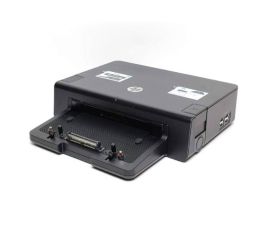
How do you connect a docking station?
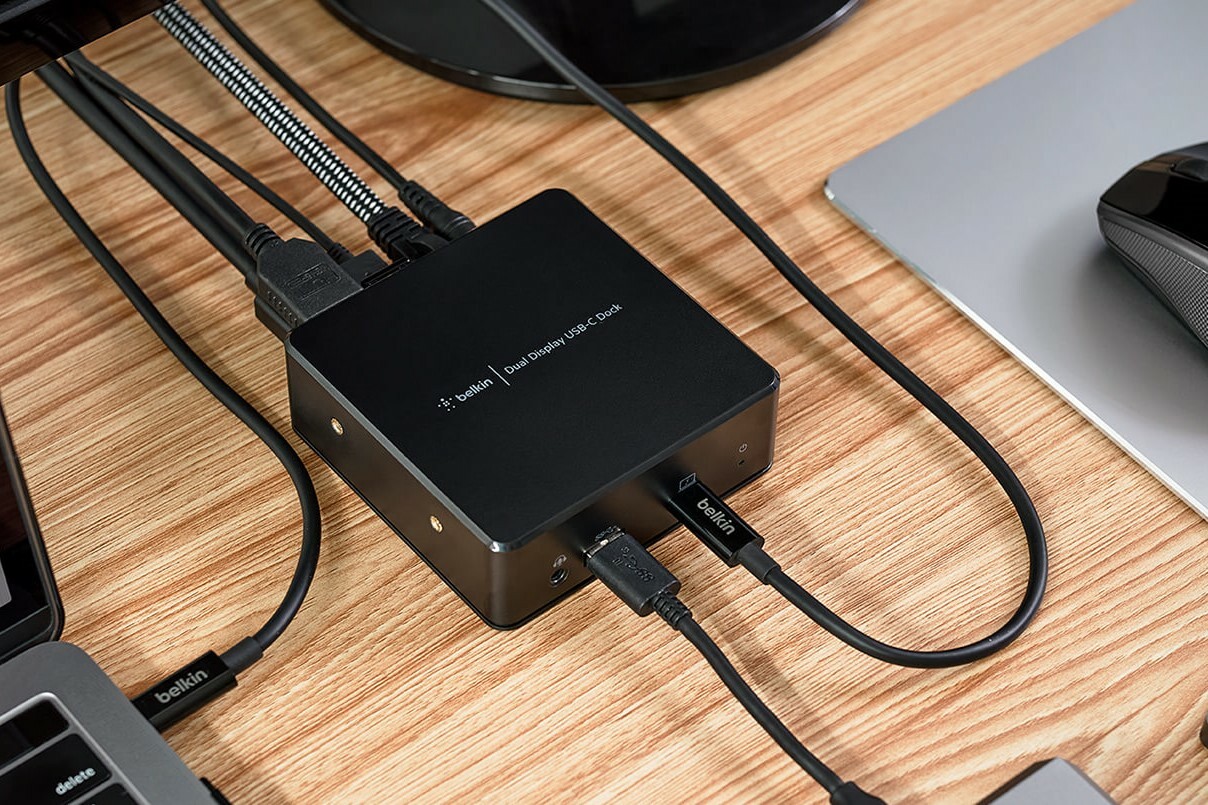
Step 1: Connect a docking station to your laptop
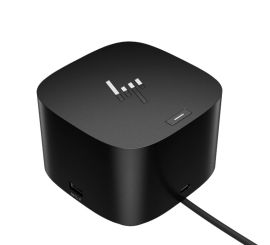
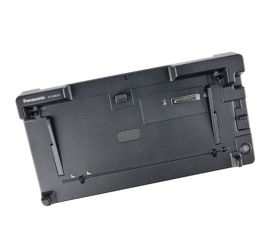
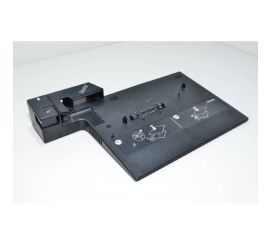
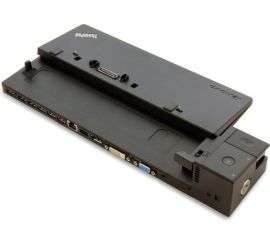
Start by connecting your docking station to your laptop. Use the correct cables, such as a USB-C cable, Thunderbolt, or another suitable connection. A docking station laptop configuration can vary by brand and model, so make sure you use the correct port. Whether you have a Dell, HP, or Lenovo docking station, the steps remain virtually the same.
Buy a docking station
Step 2: Connect your monitor
Next, connect your monitor to the docking station. Most docking stations support multiple ports such as VGA, HDMI, and DisplayPort. Choose the port that is compatible with your monitor and connect the cable. This will extend your laptop screen to a larger screen, which is ideal for multitasking and productivity.
Buy a monitor
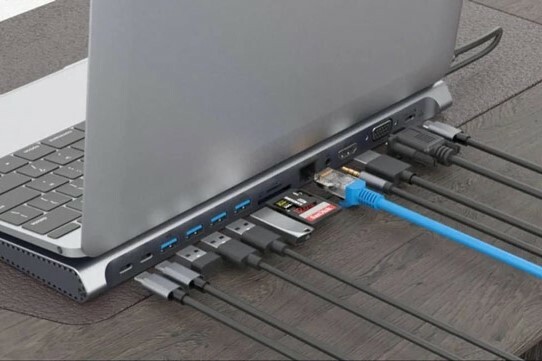
Step 3: Connect other accessories
Finally, connect your other peripherals such as a keyboard, mouse, and ethernet cable. A USB-C docking station often offers multiple USB ports and other connections, allowing you to easily connect all your accessories. This turns your laptop into a complete workstation, regardless of whether you use a MacBook, Chromebook, or Windows laptop.
View our peripherals


Buy a docking station