
Waarom krijg ik geen whatsapp melding op mijn apple watch
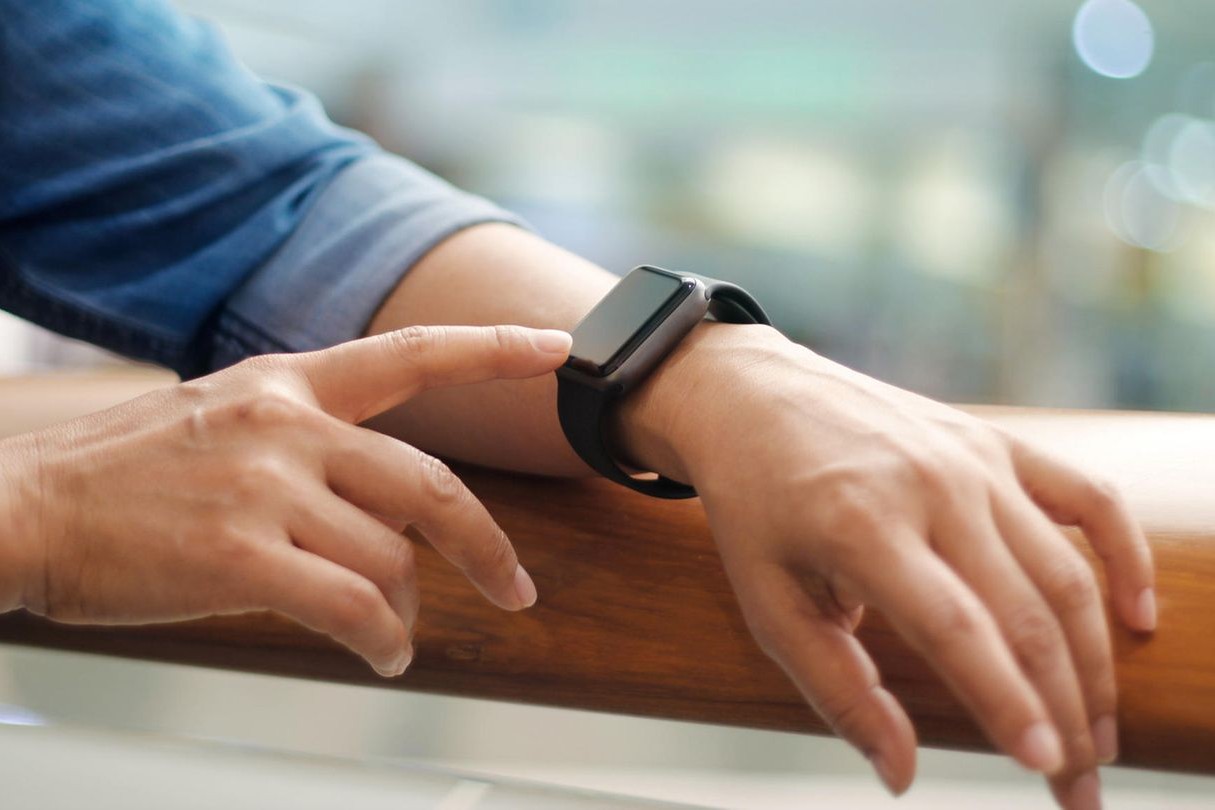
What are the WhatsApp settings for Apple Watch?
To receive WhatsApp notifications on your Apple Watch, both your iPhone and your Apple Watch must be set up correctly. Make sure notifications are enabled in your iPhone settings:
- Open the Watch app on your iPhone.
- Go to Notifications.
- Find WhatsApp in the list and make sure notifications are enabled.
- On your iPhone: Go to Settings > Notifications > WhatsApp and ensure that notifications are allowed.
If notifications still don't appear, check if your Apple Watch is not in Do Not Disturb or Theater mode.
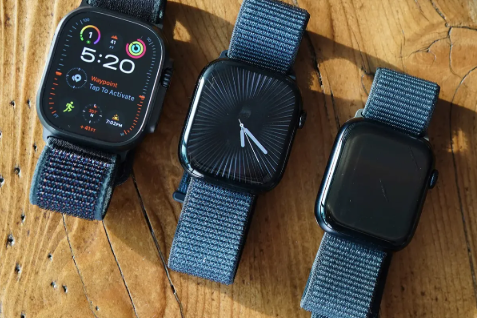
How do you solve notification problems on Apple Watch?
If you are not receiving WhatsApp notifications, you can try the following steps:
- Check if Bluetooth and Wi-Fi are enabled on both your iPhone and Apple Watch.
- Restart both your iPhone and your Apple Watch.
- Make sure your iPhone and Apple Watch are paired and within range of each other.
- Check if the latest versions of iOS, watchOS and WhatsApp are installed.
- Reset notification settings in the Watch app on your iPhone.
If the problems persist, consider repairing your Apple Watch with your iPhone.
Apple Advice

Why do notifications sometimes appear delayed?
Delays in notifications can be caused by several factors:
- Low Power Mode: If your Apple Watch or iPhone is in low power mode, notifications may be delayed.
- Network problems: A poor Wi-Fi or Bluetooth connection can cause delays.
- Focus mode: Focus settings on your iPhone can mute or delay notifications.
- App-specific settings: Check if notifications are correctly configured in the WhatsApp settings.
By following the steps above, most problems with WhatsApp notifications on your Apple Watch should be resolved. If the problem persists, consider resetting the Apple Watch or WhatsApp app.


Refurbished iPhones
Condition: Matomas naudotas

Condition: Tvarkinga būklė
Apple iPhone 16 Pro Max - 256GB - 2 Year Warranty
16_desert_titanium
Old Price €1,298.75 €1,039.00 €1,039.00

Condition: Tvarkinga būklė
Apple iPhone 15 Pro - 128GB - 2 Year Warranty
6.1 inch - 15_zwart_titanium
Old Price €848.75 €679.00 No VAT
Condition: Tvarkinga būklė
Condition: Tvarkinga būklė
Apple iPhone 15 Pro Max - 256GB - 2 Year Warranty
6.7 inch - 15_zwart_titanium
Old Price €1,073.75 €859.00 €859.00
Condition: Tvarkinga būklė
Apple iPhone 15 Pro - 256GB - 2 Year Warranty
6.1 inch - 15_zwart_titanium
Old Price €956.25 €765.00 No VAT