
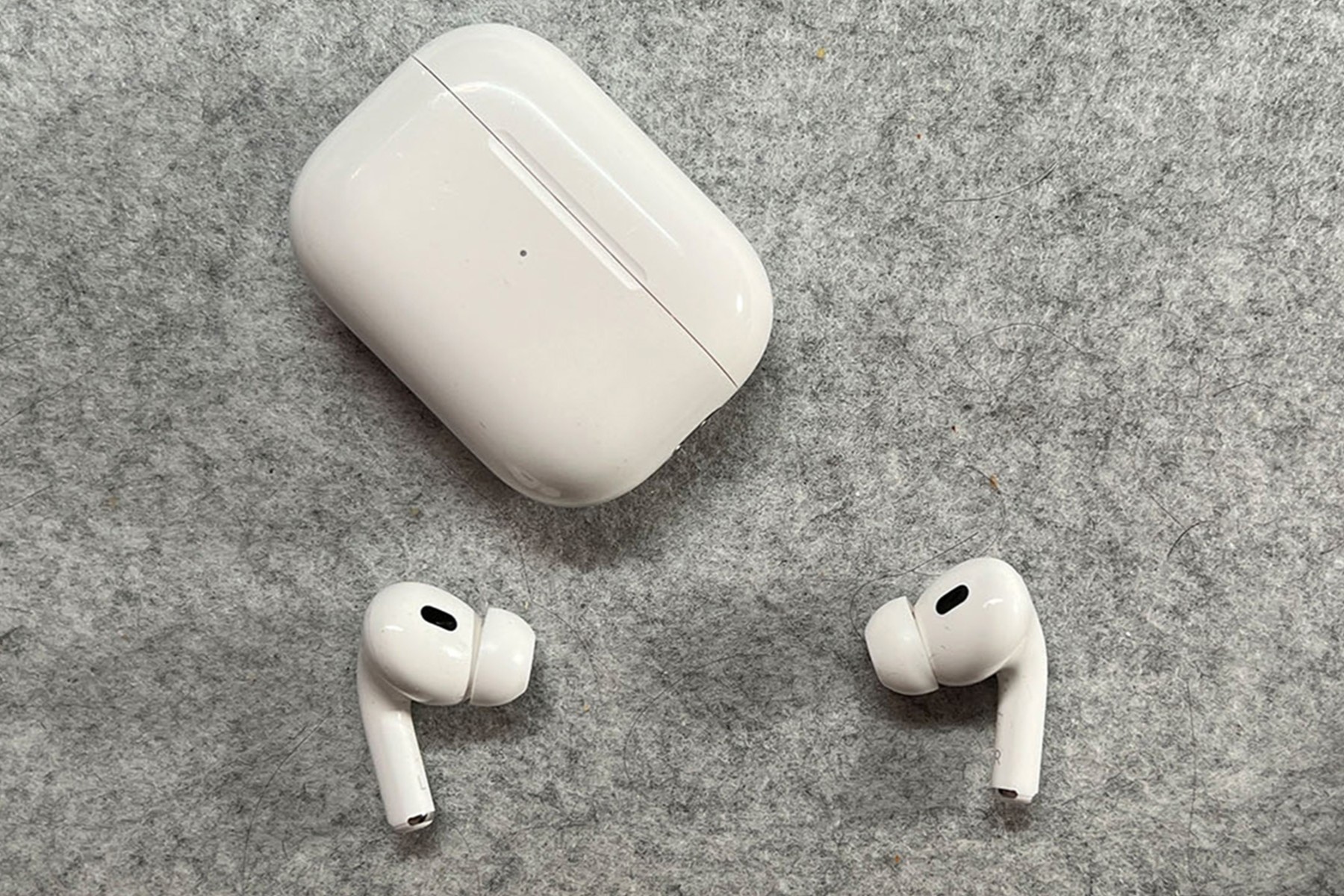
How do you reset your AirPods?

How to reset your AirPods to factory settings?
Resetting your AirPods can help with connection problems or other technical issues. Follow these steps to reset your AirPods to factory settings:
- Place your AirPods in the charging case and close the lid.
- Wait 30 seconds and then open the lid.
- On your iPhone, go to Settings > Bluetooth.
- Select your AirPods from the list and tap 'Forget This Device'.
- Press and hold the setup button on the back of the charging case until the status light flashes orange and then white.
- Your AirPods are now reset and ready to be paired again.
Buy an iPhone?

What to do with connection problems?
If you are experiencing connection problems with your AirPods, try the following steps:
- Make sure Bluetooth is enabled on your iPhone or other device.
- Place your AirPods back in the charging case and close the lid.
- Open the lid after 30 seconds and try connecting again.
- Reset your AirPods using the steps above if the problem persists.
- Check if your iPhone or device is up-to-date with the latest software version.
In many cases, connection problems are resolved after a reset.
How do you restore your AirPods on iPhone?
To reconnect your AirPods to your iPhone after a reset:
- Open the lid of your AirPods case.
- Hold the case close to your iPhone.
- A pop-up will appear on your iPhone screen with the option to connect.
- Tap 'Connect' and follow the on-screen instructions.
- Your AirPods are now successfully paired.
After resetting and re-pairing, most connection and performance issues should be resolved. If problems persist, contact Apple Support for further assistance.
Apple Advice


Buy a Refurbished iPhone with your Airpods?

Condition: Matomas naudotas

Condition: Tvarkinga būklė
Apple iPhone 15 Pro - 128GB - 2 Year Warranty
6.1 inch - 15_zwart_titanium
Old Price €848.75 €679.00 No VAT

Condition: Tvarkinga būklė
Apple iPhone 16 Pro Max - 256GB - 2 Year Warranty
16_desert_titanium
Old Price €1,298.75 €1,039.00 €1,039.00
Condition: Tvarkinga būklė
Condition: Tvarkinga būklė
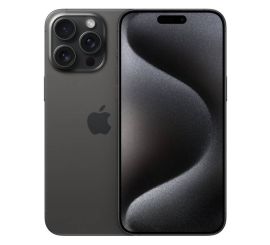
Apple iPhone 15 Pro Max - 256GB - 2 Year Warranty
6.7 inch - 15_zwart_titanium
Old Price €1,073.75 €859.00 €859.00
Condition: Tvarkinga būklė
Apple iPhone 15 Pro - 256GB - 2 Year Warranty
6.1 inch - 15_zwart_titanium
Old Price €956.25 €765.00 No VAT