
How do you remove apps on a MacBook?
How to uninstall programs on a MacBook?
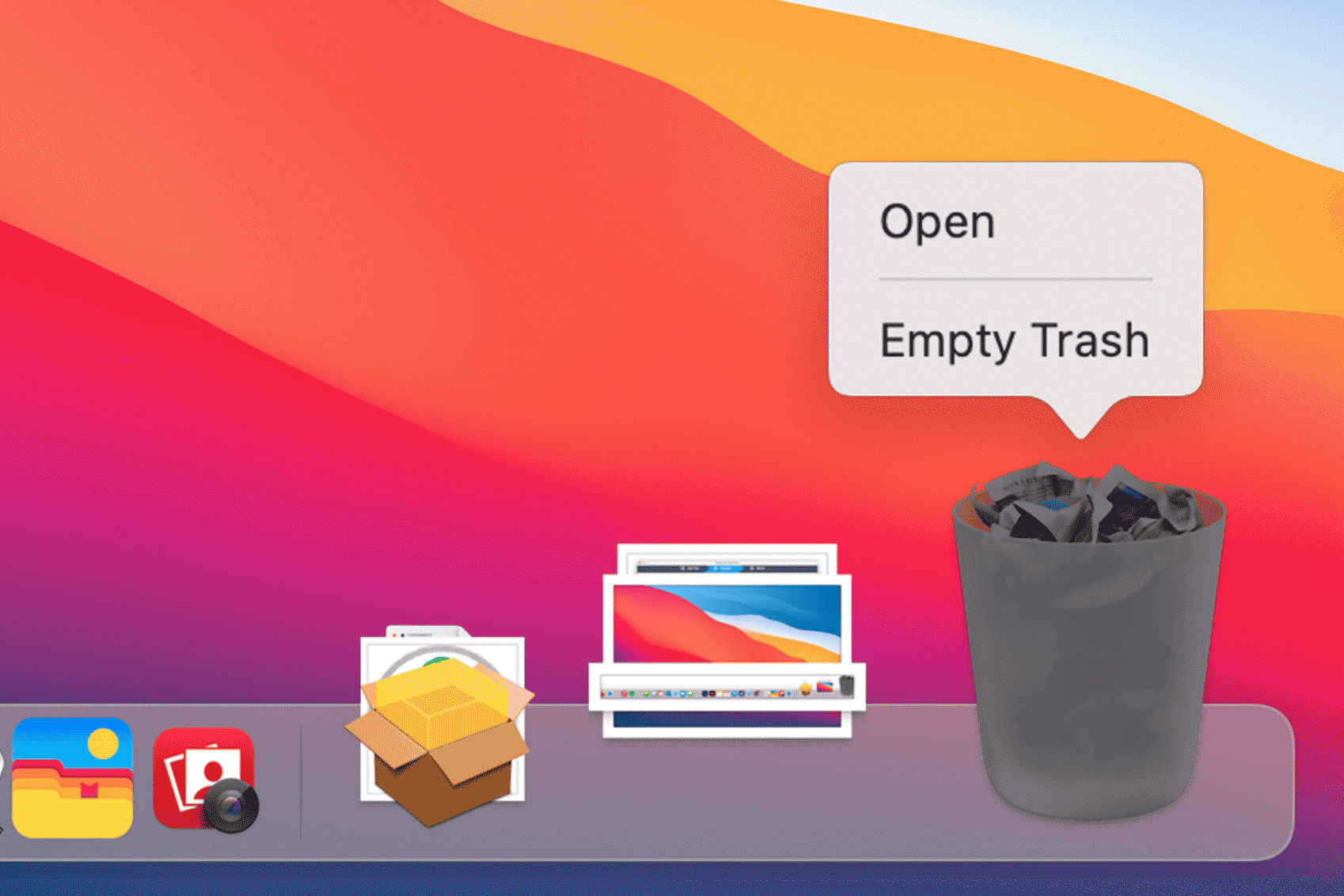
On a MacBook, you can uninstall apps via Launchpad or Finder. Via Launchpad, open the app, hold down the Option (â¥) key, and click the cross (X) to uninstall the app. In Finder, go to the Applications folder, find the app, and drag it to the Trash. Remember to empty the Trash to completely uninstall the app.
Refurbished MacBooks?

What steps should you follow for app removal?
Apps from the App Store are usually uninstalled via Launchpad, while manually installed apps are better uninstalled via Finder. After uninstalling an app, it's wise to check for leftover files in the Library > Application Support folder.
What to do with unremovable apps?
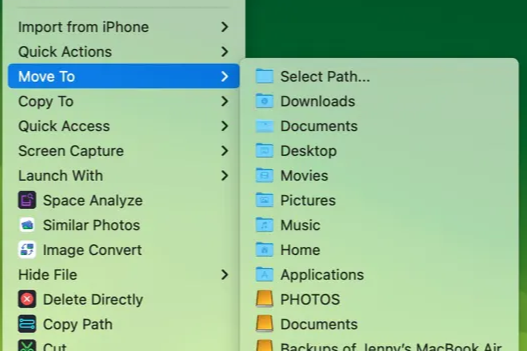
If an app cannot be uninstalled, first close it completely via Activity Monitor. Find the app in the list, force quit it, and try uninstalling again. Some apps require administrator rights, meaning you may need to enter your administrator password. If manual removal fails, you can use a tool like AppCleaner to clean up leftover files.
By carefully following these steps, you can easily remove most apps from your MacBook, including any remaining files.
MacBook Advice


Best MacBooks

Apple MacBook Pro (15 inch, 2017) - 2-Year Warranty
Apple MacBook Pro (15 inch, 2018) - 2-Year Warranty
Apple MacBook Pro (15 inch, 2018) - 2-Year Warranty
Apple MacBook Pro (15 inch, 2017) - 2-Year Warranty
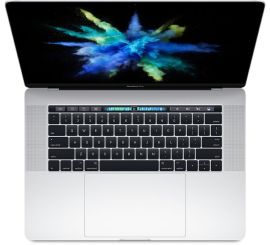
Apple MacBook Pro (15 inch, 2017) - 2-Year Warranty